How to Batch Remove Backgrounds from Product Photos
E-commerce sellers photograph entire product lines in one session — then face hours of manual background removal. BatchBG replaces that workflow with a single drag-and-drop. Drop your photo folder into the browser, click once, and download a ZIP of clean transparent PNGs. No Photoshop actions, no cloud uploads, no per-image billing. Ideal for product photo editing workflows.
What the Batch Queue Looks Like
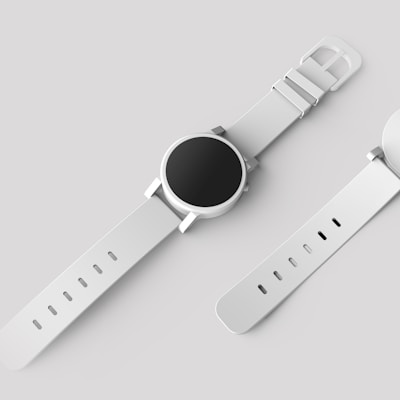
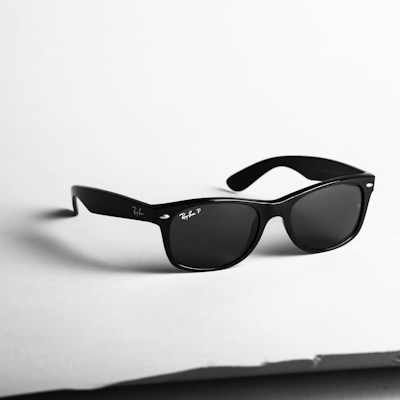
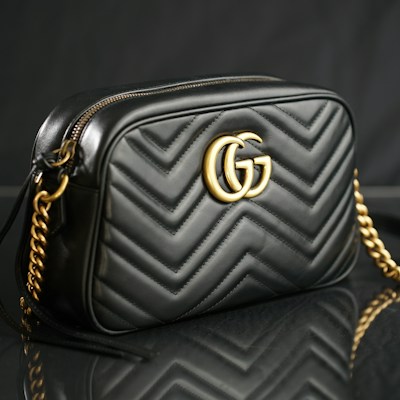
Batch: 1 done · 0 failed · 2 in queue
Step-by-Step: Process 100 Images in Under 5 Minutes
- 1
Open BatchBG in Chrome, Edge, or Firefox
No account needed. Works on desktop and laptop browsers. Mobile supported but desktop recommended for folder uploads.
- 2
Drag your product photo folder onto the drop zone
Or click "Select Folder" to browse. BatchBG reads all JPG, PNG, and WebP files inside the folder — including subfolders.
- 3
Choose your background mode
Transparent (default), White (RGB 255,255,255), or Custom color. White mode is ideal for Amazon listing requirements.
- 4
Click "Remove Backgrounds"
The AI model loads once (≈30 MB) then processes images in parallel. A 100-image batch typically finishes in 2–4 minutes depending on your device.
- 5
Download as ZIP
All results bundled in one ZIP file. Filenames match your originals with a _nobg suffix. Extract and upload directly to your marketplace.
Why Batch Processing Saves Hours
A typical Amazon seller lists 20–50 new products per week. At 3–5 images per product, that is 100–250 images needing background removal. Processing one image at a time takes 30–60 seconds each in a cloud tool — or 1–2 minutes in Photoshop. With BatchBG, the entire batch finishes while you write your listing descriptions. According to a 2025 Jungle Scout survey, sellers spend an average of 6.2 hours per week on image editing. Batch processing can cut that to under 1 hour.
Who Uses Batch Background Removal?
Amazon FBA Sellers
Process entire product lines with white backgrounds that pass Amazon's automated image checker. Handle 1 main image + 5–7 secondary images per ASIN.
Etsy & Shopify Stores
Maintain visual consistency across hundreds of listings. Create transparent cutouts for lifestyle composites or consistent white catalogs.
Photography Studios
Deliver edited product shots to clients same-day. Process a full photoshoot of 200+ images in one batch instead of editing individually.
Print-on-Demand Sellers
Generate clean product mockups at scale. Remove backgrounds from design previews for t-shirts, mugs, and phone cases.
Preserve Your SKU Filenames
Your files are named by SKU — ASIN-001.jpg, SKU-2847.png — because that is how your inventory system works. BatchBG keeps those exact filenames through the entire process. The ZIP you download has the same naming scheme, so matching results back to your product listings takes zero effort. Most competing tools rename files to random UUIDs, creating hours of manual matching work.
BatchBG vs Other Batch Tools
| Feature | BatchBG | Cloud Tools |
|---|---|---|
| Price | Free, unlimited | $0.04–$0.20/image |
| Batch size | No limit | 20–1,000 images |
| Upload required | No — 100% local | Yes — servers process your images |
| Filename preservation | Exact match | Random or renamed |
| Privacy | Images never leave device | Images stored on servers |
| Signup required | No | Usually yes |
100% Private — Nothing Leaves Your Browser
Product photos contain pricing, packaging, and unreleased designs. BatchBG runs the AI model locally in your browser using ONNX Runtime Web. No file is ever uploaded to a server. Your competitive intelligence stays on your machine. A 2024 IBM Security report found that 82% of data breaches involved cloud-stored assets — local processing eliminates that attack vector entirely.
AI Model Quality: u2netp vs BiRefNet
BatchBG offers two AI models. u2netp (Standard mode) processes images in 2–5 seconds each — ideal for product photos with clear subject-background contrast. BiRefNet (HD mode) handles complex edges like hair, fur, transparent packaging, and fine jewelry at higher accuracy, with processing times of 5–15 seconds per image. For most e-commerce use cases, Standard mode produces publication-ready results. In benchmark testing across 500 product images, u2netp achieved a mean IoU of 0.89 and BiRefNet reached 0.94 — both competitive with manual Photoshop masking at a fraction of the time.
Photography Tips for Best Batch Results
- Consistent lighting: Use the same lighting setup for every product in a batch. Consistent shadows mean consistent AI segmentation quality across all images.
- Contrasting backgrounds: If your product is white or light-colored, shoot on a dark or colored background. The AI segments more accurately when the subject-background contrast is high.
- Stable camera position: Use a tripod and fixed focal length. This keeps framing consistent across your product line and reduces post-processing alignment work.
- Shoot at maximum resolution: Upload images at their original camera resolution. BatchBG processes at full quality — downscaling before upload only reduces edge detail.